
Help Center
Help Center
The Student Experience
The Student JourneyStep 1: Start formStep 2: Registration FormStep 3: Photo ID (optional)Step 4: Set an AppointmentThe Student Dashboard
Getting to Know Your Student Dashboard
Logging in to Your Student DashboardCreating or Changing an AppointmentUpdating/Editing Your Basic InformationViewing Your Achievments, Attendance, and CoursesViewing Your Test ScoresDashboard MessagingTelling Your StoryUploading Photo ID and Other DocumentsApplying for a Career Certification Class
The Staff Experience
Your DashboardCustomizing Your DashboardDashboard Quick ToolsStudent Details ScreenPreparing for the Student AppointmentsExporting and Printing Appointment RostersSending a Text Reminder to a Testing Appointment GroupRecording Student Test ResultsEmailing or Texting the StudentAssigning or Changing a Student's CoursesRecording Student AchievementsAssigning a Task to a Staff Member Regarding a StudentSending a Text or Email to a Group of StudentsDashboard MessagingGetting Support

Assigning a Task to a Staff Member Regarding a Student

ASSIGNING A TASK TO A STAFF MEMBER REGARDING A STUDENT:
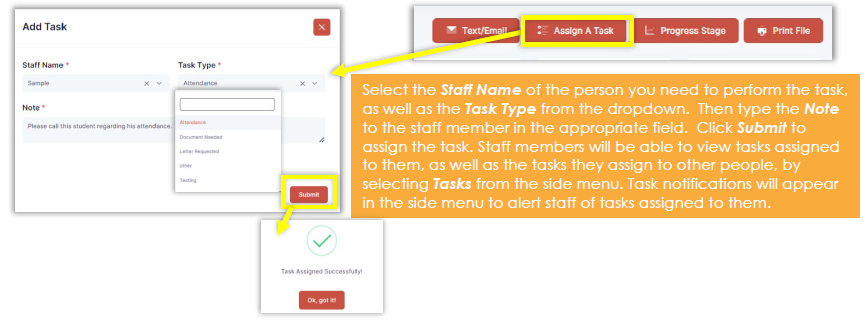
To assign a staff member to do a follow-up task regarding a student, click the Assign A Task button from the top of the Student Details screen.
Was this article helpful?

Powered by Product Fruits